Showing posts with label Sensor. Show all posts

Monday, 2 March 2015

Get Device Orientation and use it inside the application

Android powered device has sensors to detects the current orientation of the device. The Orientation can be detected using single sensor or combination of sensors like Gravity, using Accelerometer and Magnetometer, Gravity and Magnetometer, Rotation etc. Determining the orientation of a device is very useful to many applications like games.

Android also provides an API OrientationEventListener, using which it is very easy to detect the device orientation. This is a helper class for receiving notifications from the SensorManager when the orientation of the device has changed. Let us create a simple demo application using this class.

Limitation: When device is lying flat on something like table, angle it notify is -1. So, you can’t rotate the device about the axis vertical to device screen when lying flat on a table.

In the demo application, there is an imageview and textview in the main layout file. Text view displays the value of orientation in angle and image is rotated accordingly. In the sample application, OrientationEventListener is enabled inside onResume method and is disabled in onPause life cycle method of the main activity.
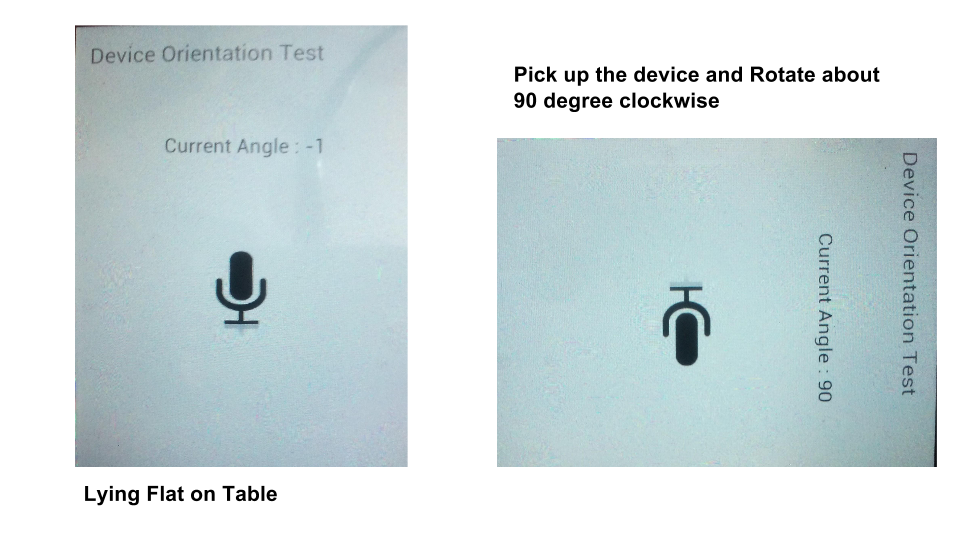
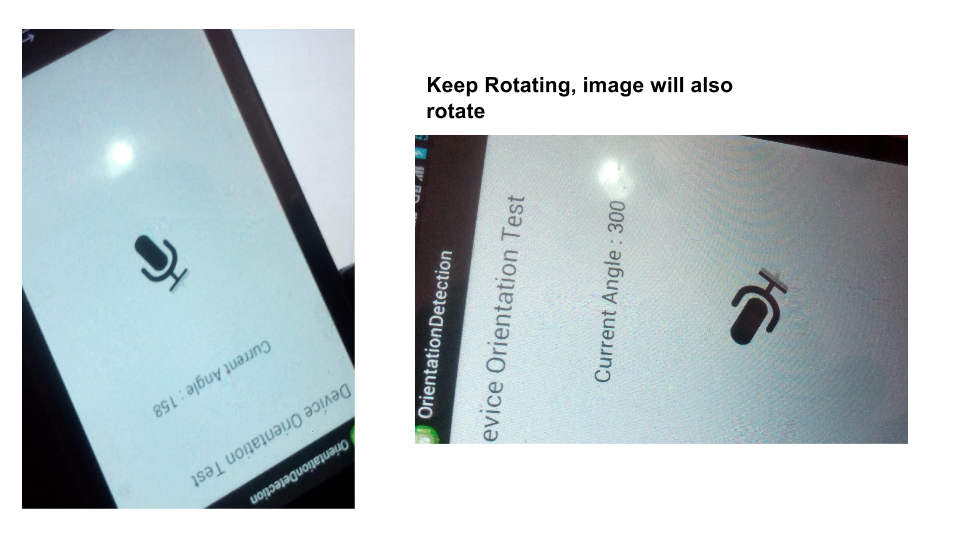
orientation1.png
orientation2.png

MainActivity.java

package test.example.orientationdetection;

import android.app.Activity;
import android.os.Bundle;
import android.view.OrientationEventListener;
import android.widget.ImageView;
import android.widget.TextView;


public class MainActivity extends Activity {

ImageView imageView;
TextView angle;
OrientationEventListener orientationListener;
   @Override
   protected void onCreate(Bundle savedInstanceState) {
       super.onCreate(savedInstanceState);
       setContentView(R.layout.activity_main);
       
       imageView=(ImageView)findViewById(R.id.imageView1);
       angle=(TextView)findViewById(R.id.angle_textView);
       
       orientationListener = new OrientationEventListener(this) {
@Override
public void onOrientationChanged(int orientation) {
angle.setText("Current Angle : "+orientation);
imageView.setRotation(orientation);
}
};
   }

   @Override
   protected void onResume() {    
    super.onResume();
   
    if(orientationListener.canDetectOrientation()){
    orientationListener.enable();
    }
   }
   
   @Override
   protected void onPause() {    
    super.onPause();
   
    if(orientationListener.canDetectOrientation()){
    orientationListener.disable();
    }
   }
  
}

activity_main.xml

<RelativeLayout xmlns:android="http://schemas.android.com/apk/res/android"
   xmlns:tools="http://schemas.android.com/tools"
   android:layout_width="match_parent"
   android:layout_height="match_parent"
   android:paddingBottom="@dimen/activity_vertical_margin"
   android:paddingLeft="@dimen/activity_horizontal_margin"
   android:paddingRight="@dimen/activity_horizontal_margin"
   android:paddingTop="@dimen/activity_vertical_margin"
   android:textAlignment="center"
   tools:context="test.example.orientationdetection.MainActivity" >

   <TextView
       android:id="@+id/textView1"
       android:layout_width="match_parent"
       android:layout_height="wrap_content"
       android:layout_alignParentRight="true"
       android:text="Device Orientation Test "
       android:textSize="20sp" />

   <TextView
       android:id="@+id/angle_textView"
       android:layout_width="wrap_content"
       android:layout_height="wrap_content"
       android:layout_below="@+id/textView1"
       android:layout_centerHorizontal="true"
       android:layout_marginTop="67dp"
       android:text=""
       android:textAppearance="?android:attr/textAppearanceMedium" />

   <ImageView
       android:id="@+id/imageView1"
       android:layout_width="100dp"
       android:layout_height="100dp"
       android:layout_centerHorizontal="true"
       android:layout_centerVertical="true"
       android:src="@drawable/micro_black" />

</RelativeLayout>

AndroidManifest.xml

<?xml version="1.0" encoding="utf-8"?>
<manifest xmlns:android="http://schemas.android.com/apk/res/android"
   package="test.example.orientationdetection"
   android:versionCode="1"
   android:versionName="1.0" >

   <uses-sdk
       android:minSdkVersion="14"
       android:targetSdkVersion="19" />a

   <application
       android:allowBackup="true"
       android:icon="@drawable/ic_launcher"
       android:label="@string/app_name"
       android:theme="@style/AppTheme" >
       <activity
           android:name=".MainActivity"
           android:label="@string/app_name"
           android:screenOrientation="portrait" >
           <intent-filter>
               <action android:name="android.intent.action.MAIN" />

               <category android:name="android.intent.category.LAUNCHER" />
           </intent-filter>
       </activity>
   </application>

</manifest>

Thursday, 26 February 2015

Proximity Sensor in Android Part-2

In my previous post, We have some basic understanding of Proximity sensor in android. You can go through that post if you have not seen yet.

http://androidconceptspp.blogspot.in/2015/02/proximity-sensor-in-android-part-1.html

In this post we will have some fun with proximity sensor. The sample application is something like below picture. When you put your finger near the proximity sensor, image will changed from icon launcher to heart shape and when you put away your finger launcher icon will be restored. Also a text will be displayed showing number of time this sensor has produced the value.


Now, let us create the required source code for the application.

MainActivity.java


import android.app.Activity;
import android.hardware.Sensor;
import android.hardware.SensorEvent;
import android.hardware.SensorEventListener;
import android.hardware.SensorManager;
import android.os.Bundle;
import android.widget.ImageView;
import android.widget.TextView;

public class MainActivity extends Activity implements SensorEventListener {

SensorManager sManager;
Sensor proximity;
TextView counter;
ImageView imageView;
static int count=0;

@Override
protected void onCreate(Bundle savedInstanceState) {
super.onCreate(savedInstanceState);
setContentView(R.layout.activity_main);

sManager = (SensorManager) getSystemService(SENSOR_SERVICE);
counter = (TextView) findViewById(R.id.sensor_counter);
counter.setText("");

proximity = sManager.getDefaultSensor(Sensor.TYPE_PROXIMITY);
if (proximity == null) {
counter.setText("Proximity Sensor Not Available");
}
imageView = (ImageView)findViewById(R.id.imageView1);
}

@Override
protected void onResume() {
super.onResume();
sManager.registerListener(this, proximity,
SensorManager.SENSOR_DELAY_NORMAL);
}

@Override
protected void onPause() {
super.onPause();
sManager.unregisterListener(this);
}

@Override
public void onSensorChanged(SensorEvent event) {
count++;
counter.setText("Count: "+count);
float approx = event.values[0];
if(approx<2.0){
imageView.setImageResource(R.drawable.ic_action_favorite);
}else{
imageView.setImageResource(R.drawable.ic_launcher);
}
}

@Override
public void onAccuracyChanged(Sensor sensor, int accuracy) {

}
}

activity_main.xml

<LinearLayout xmlns:android="http://schemas.android.com/apk/res/android"
   xmlns:tools="http://schemas.android.com/tools"
   android:id="@+id/LinearLayout1"
   android:layout_width="match_parent"
   android:layout_height="match_parent"
   android:orientation="vertical"
   android:paddingBottom="@dimen/activity_vertical_margin"
   android:paddingLeft="@dimen/activity_horizontal_margin"
   android:paddingRight="@dimen/activity_horizontal_margin"
   android:paddingTop="@dimen/activity_vertical_margin"
   tools:context="test.example.proximitysensoactivity.MainActivity" >

   <TextView
       android:id="@+id/textView1"
       android:layout_width="match_parent"
       android:layout_height="wrap_content"
       android:layout_gravity="center_horizontal"
       android:text="Proximity Sensor Fun"
       android:textSize="25sp"
       android:textStyle="bold"
       android:typeface="serif" />

   <TextView
       android:id="@+id/sensor_counter"
       android:layout_width="wrap_content"
       android:layout_height="wrap_content"
       android:layout_gravity="center_horizontal"
       android:layout_marginTop="30dp"
       android:text="Medium Text"
       android:textAppearance="?android:attr/textAppearanceMedium" />

   <ImageView
       android:id="@+id/imageView1"
       android:layout_width="match_parent"
       android:layout_height="0dp"
       android:layout_margin="50dp"
       android:layout_weight="1"
       android:src="@drawable/ic_launcher" />

</LinearLayout>

AndroidManifest.xml

<?xml version="1.0" encoding="utf-8"?>
<manifest xmlns:android="http://schemas.android.com/apk/res/android"
   package="test.example.proximitysensoactivity"
   android:versionCode="1"
   android:versionName="1.0" >

   <uses-sdk
       android:minSdkVersion="10"
       android:targetSdkVersion="19" />
   

   <application
       android:allowBackup="true"
       android:icon="@drawable/ic_launcher"
       android:label="@string/app_name"
       android:theme="@style/AppTheme" >
       <activity
           android:name=".MainActivity"
           android:label="@string/app_name" >
           <intent-filter>
               <action android:name="android.intent.action.MAIN" />

               <category android:name="android.intent.category.LAUNCHER" />
           </intent-filter>
       </activity>
   </application>

</manifest>